Setting up Beam Clearing House
1. Go to Users on the menu and add a new Contact – Service Provider - Contact – “BEAM Clearing House”

2. Add the following bank account details to this new Contact
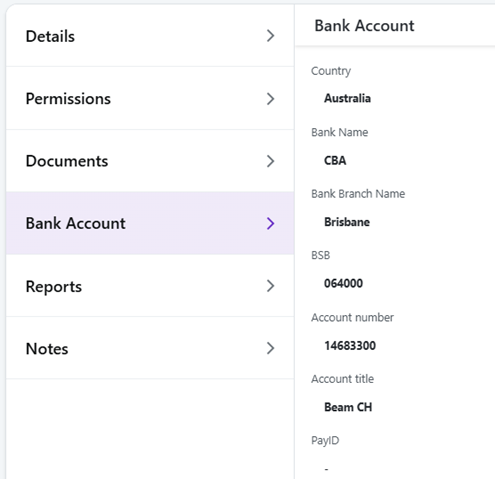
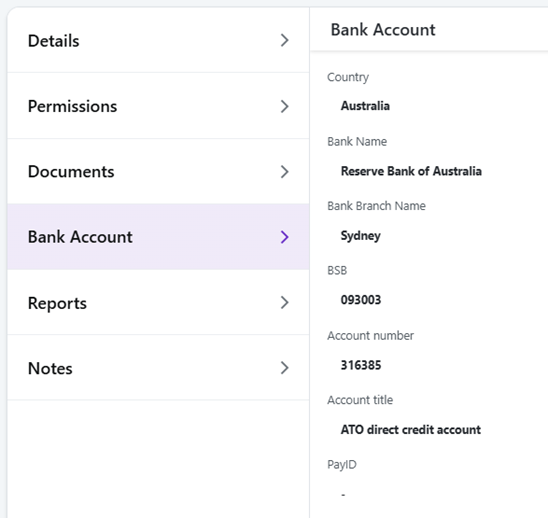
3. Setup a new contact record for the Australian Tax Office or ATO

4. Populate the bank details
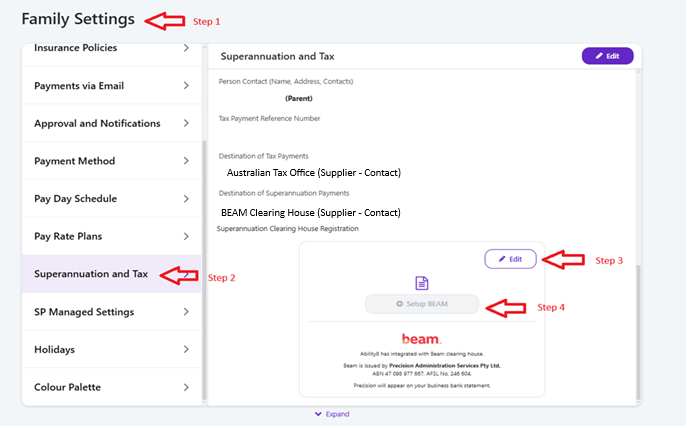
Go to Family Settings
5. Then Superannuation and Tax section
6. Populate the “Tax Payment Reference Number” – This number comes from the ATO and is specific to your WPN or ABN number and is your Payment Reference Number for all your payments to the ATO (It is not your ABN or WPN number)
7. Populate the “Destination of Tax Payments” by selecting from the drop list the previously configured ATO contact record create above.
8. Populate the “Destination of Superannuation Payments” by selecting the “BEAM Clearing House” contact record from the drop list.
9. Scroll down till you see “beam” section Press the “Edit” button
10. Select the “Setup BEAM” button
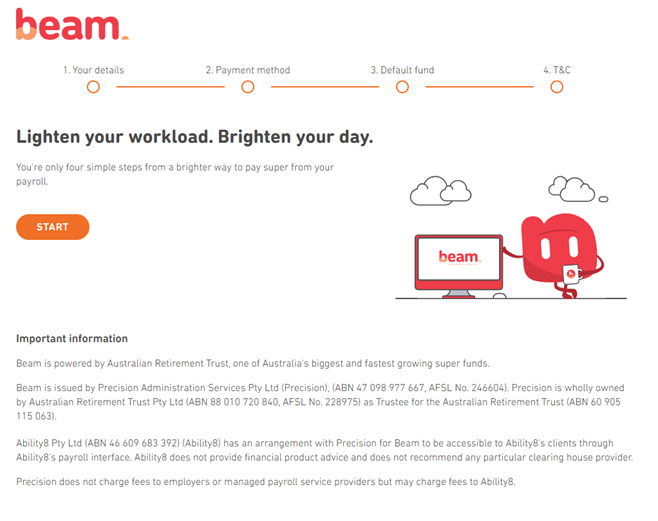
11. A new browser tab will open and you will be taken to the “beam” registration screen
12. Press the “Start” button
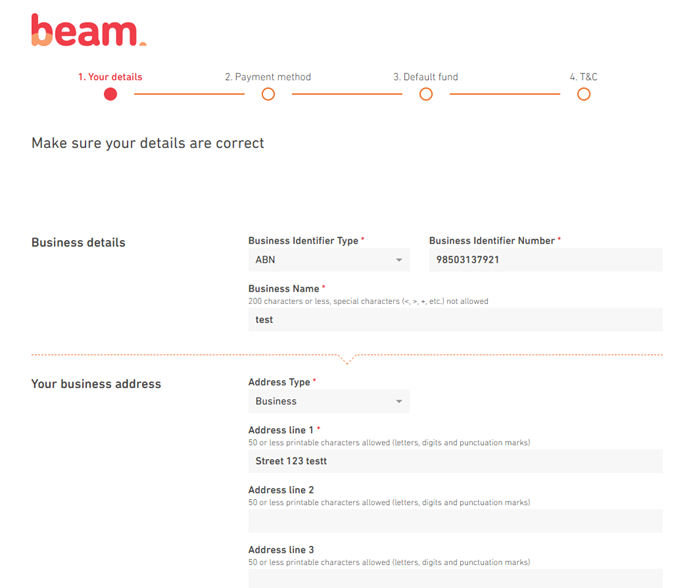
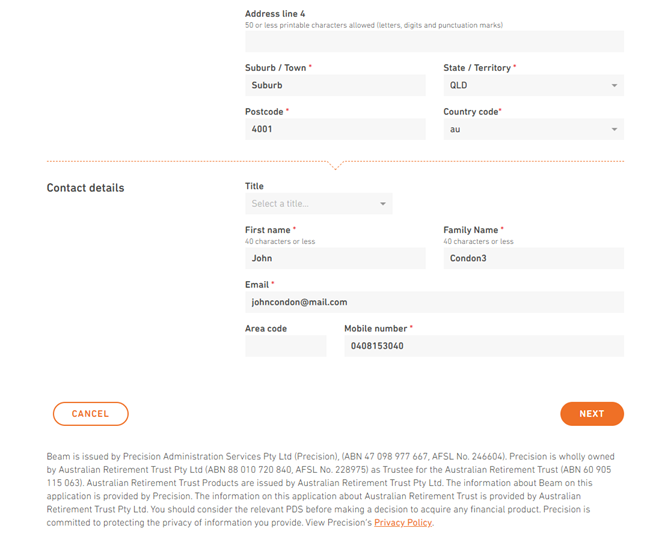
13. The system will try to read the details from the Ability8 app and populate the form and check your ABN or WPN number, otherwise enter all contact details manually.
14. Press the “Next” button to advance to next screen
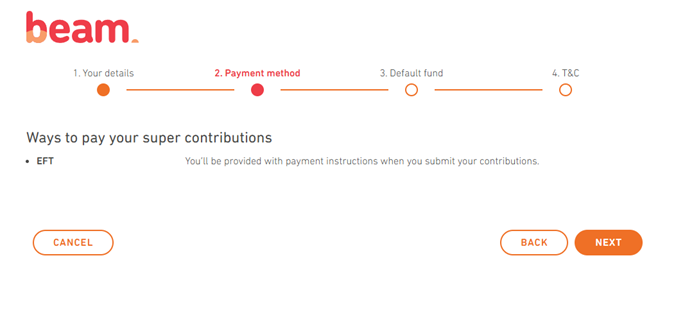
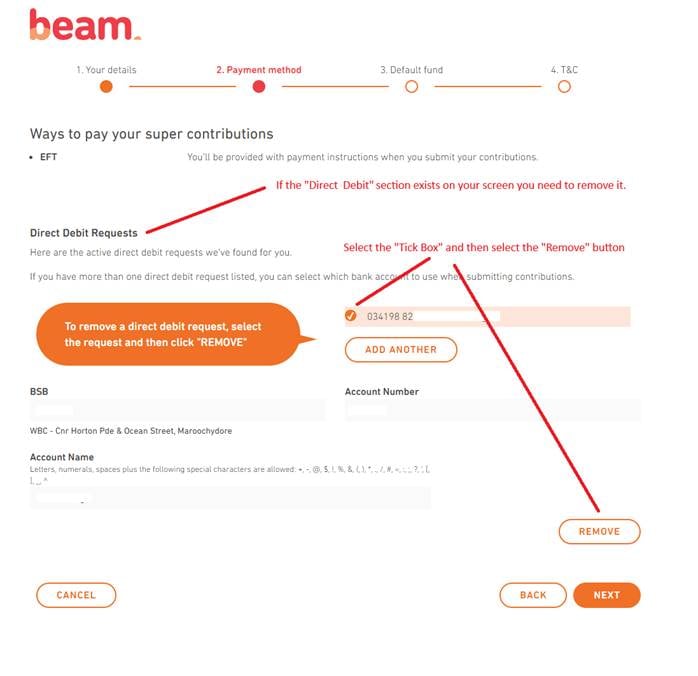
15. Select the Payment method, currently we only support “EFT”, so if any other method is displayed, remove or delete it.
16. Press the “Next” button to advance to next screen
17. Note – Important! Ability8 app does not support the “Direct Debit” payment option, so if you see the “Direct Debit Requests” option this needs to be removed.
18. Select the “Tick Box” and then the “Remove” button
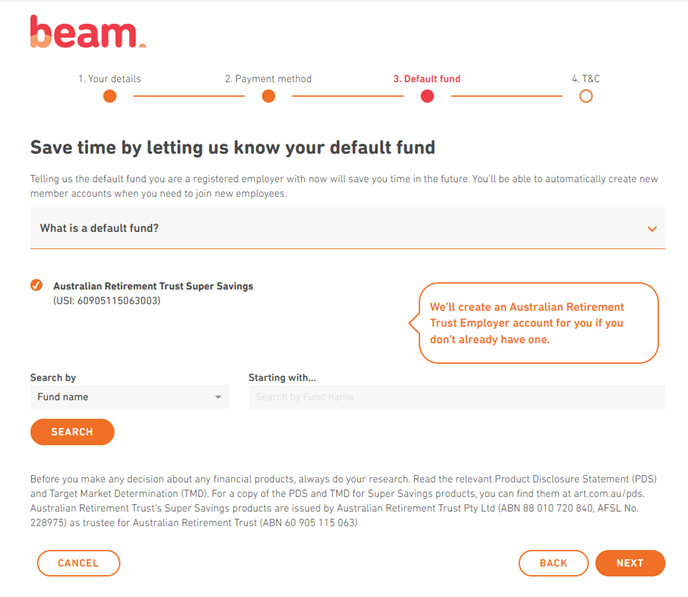
19. If you already have a default Super Fund you can enter the details here with the “Search” tool, otherwise the system can create one for you as shown in the image below.
20. If you select “beam” to create a new default fund, the fund details will be copied back to the Ability8 app in Family Settings once this process is finished. (As an employer it is mandatory to have a Default Super Fund, so this is an easy way to establish one, even if you never use it.)
21. Press the “Next” button to advance to next screen
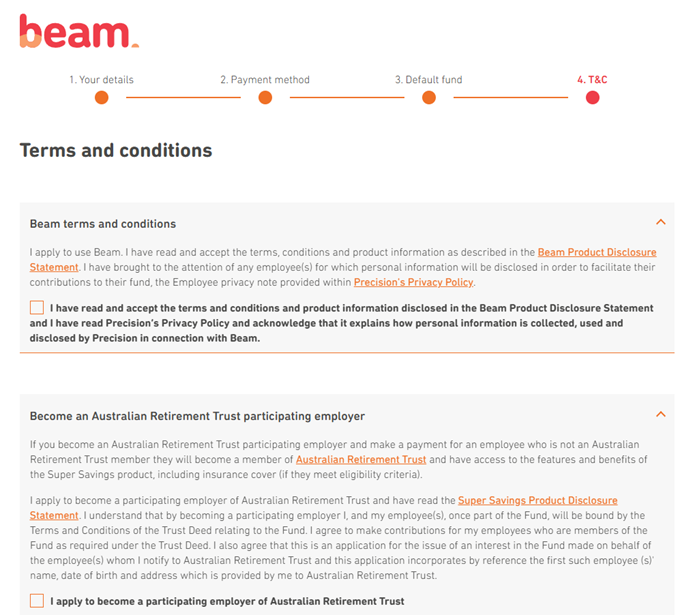
22. Read and accept the “Terms and conditions” by ticking the first tick box on this screen.
23. The second tick box is optional “Become an Australian Retirement Trust participating employer”
24. Also note that you should inform your staff you are using “beam” and “Precision” to submit their personal data to the super funds.
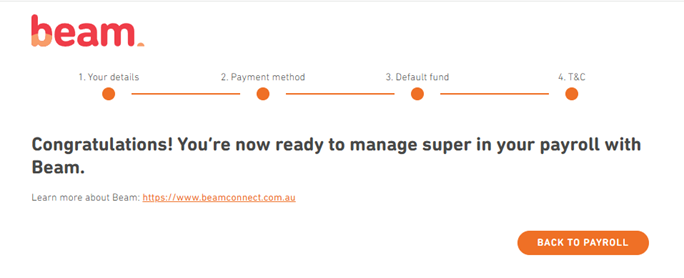
25. The final step should display this “Congratulations” screen
26. Press the “Back to Payroll” button and you will be returned to the Ability8 app
27. Once back in the Ability8 App scroll down to the “beam” setup section and confirm you have a green tick and the “Registered” details below it.
NOTE: You may need to refresh the screen to update the details.
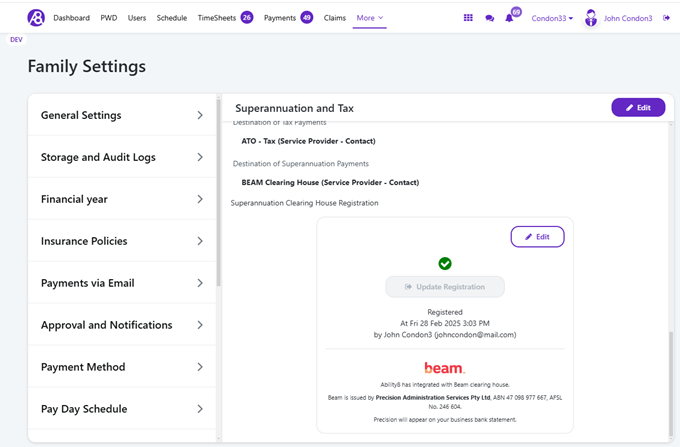
28. This completes the configuration of Beam Clearing House, the following pages are what you will now see regarding Superannuation when doing a pay run.
1. When doing the pay run in most cases you should turn on all switches.
2. You have some options each time you do a pay run.
· If you are not going to pay your PAYG Tax with each pay run, you can turn off the first switch.
· If you are not using the ABA file you can turn off this switch, but it is a good idea to leave it on because it creates a PDF document you can download which lists all the bank payments you need to make for the current pay run. (The ABA file is used by some banks to allow the payment to multiple people or companies with one file upload through your banking portal.)
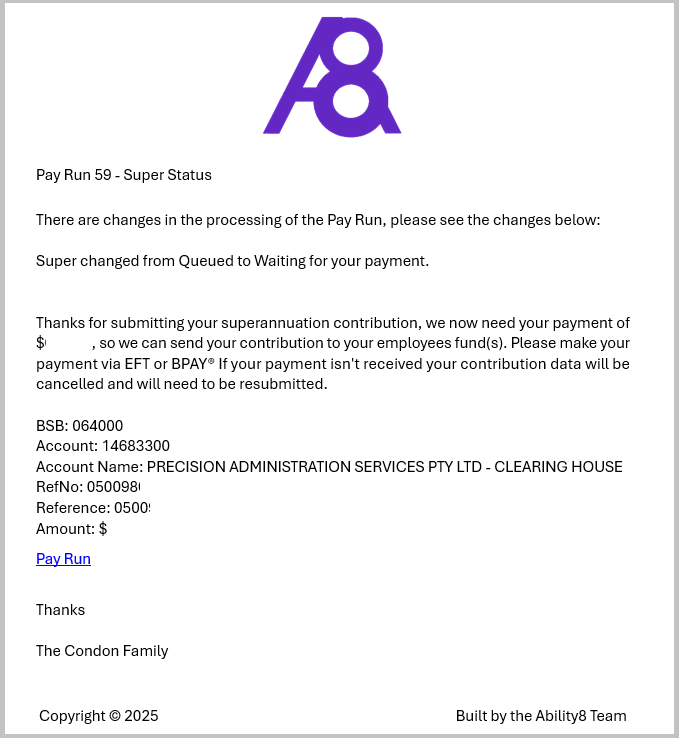
3. Once you submit the pay run the following screen will appear, at this time you will also receive an email about your superannuation payment. If you read the text below the blue “Waiting for your payment” box you will see the details about where you need to make the superannuation clearing house payment. FYI – Beam is using its subsidiary Precision Admin Services Pty Ltd. These payment details will appear in the ABA file with the reference number and also the email sent to you.
4. This blue “Waiting for your payment” status may stay like this for up to 3 days while the payments are distributed to each of the staff super funds.
5. If the funds have not been received by Beam (Precision) after 2 days you will get a reminder email to make the payment. This reminder email will repeat again after 5 days if the funds are still outstanding.
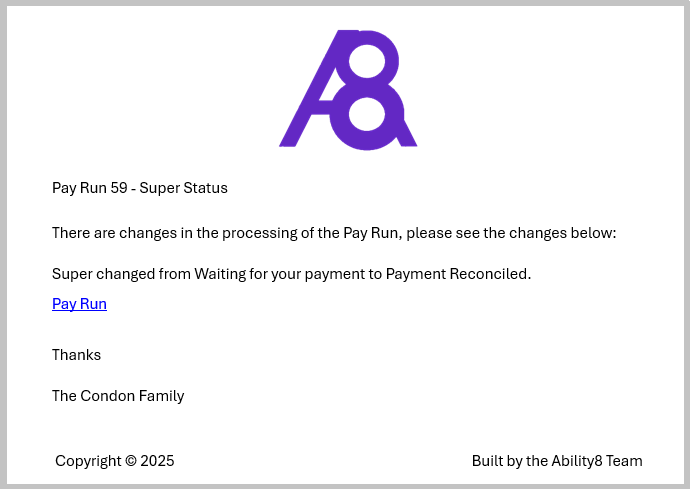
6. The next status change is “Payment Reconciled” which confirms the super funds have accepted all payments. You will also receive an email when this status is reached.
7. Selecting the small “Bell” icon will display a history of the notifications within the Super clearing house process.
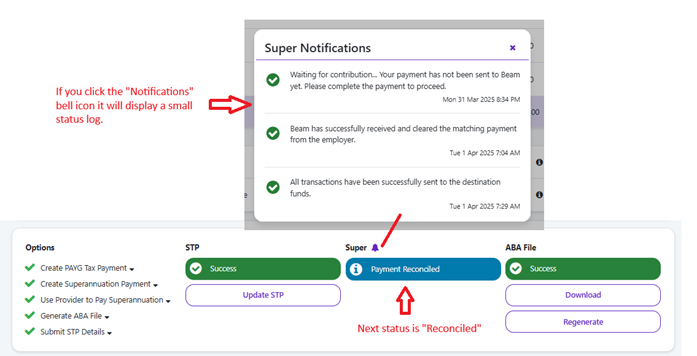
8. The final status is a green “Success” meaning the pay run has completed successfully, again you
will receive an email when this status is reached. All boxes should show green
“Success”.
9. Below are examples of the emails you will receive as the process progresses.
Waiting Payment email
Reconciled Payment email
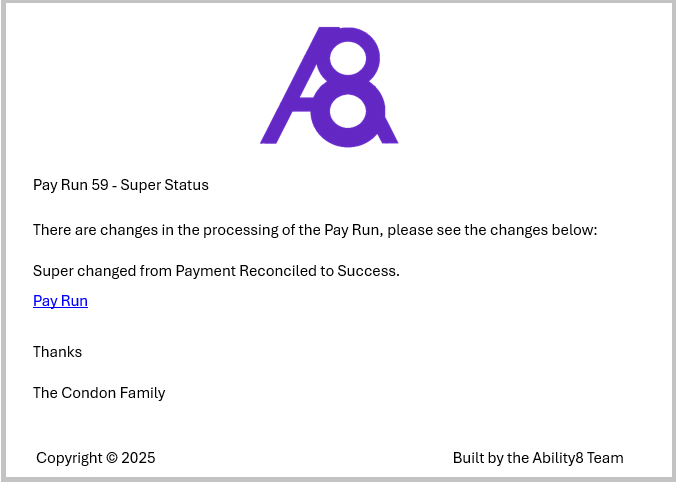
Success of the process email